

Product Control - Submit Documentation
This is a guide to Product Control - Submit Documentation [LINK!]
You can find help to:
- Creating an account
- Log in
- Select a product control
- Select a role
- Attach documentation and other relevant information
- Send documentation
Guide
Create account
Create an account the first time you use the form.
1: Send Files to the Danish Safety Technology Authority
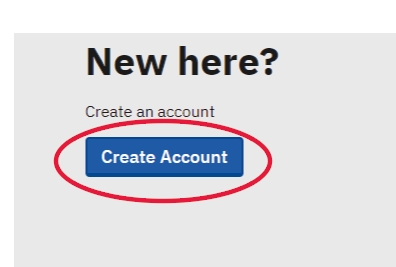
2: Click on "Create account"
3: Fill out the form
Use the e-mail address registered at The Danish Safety Technology Authority. Otherwise your documentation will not be registered to your case.
The registered e-mail address is the one through which The Danish Safety and Technology Authority communicated with you.
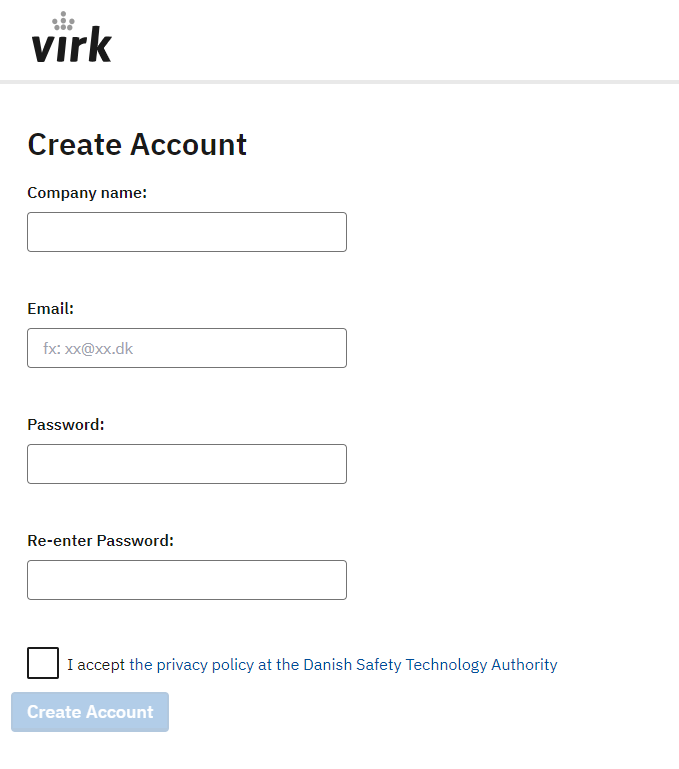
4: Click "Create account"
Now you are ready to login and upload documentation on your case.
Login
1: Go to LINK
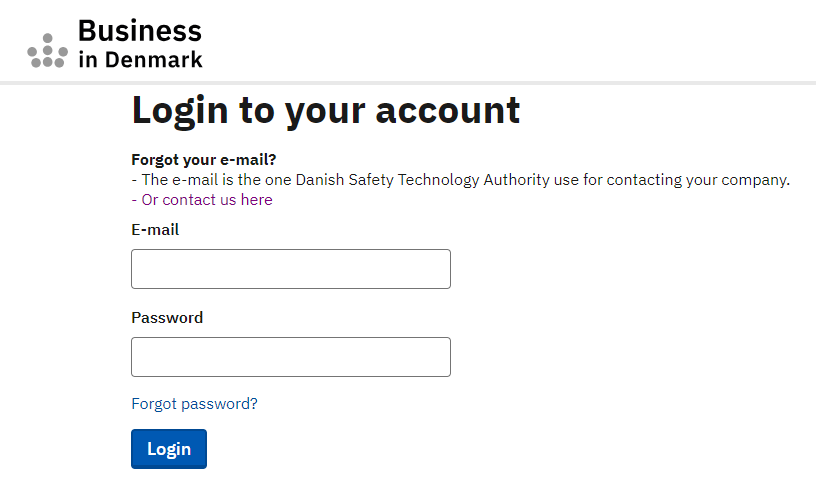
2: Enter your e-mail adress.
3: Enter your password
If you have forgotten your password click "Forgot password?"
Select a product control
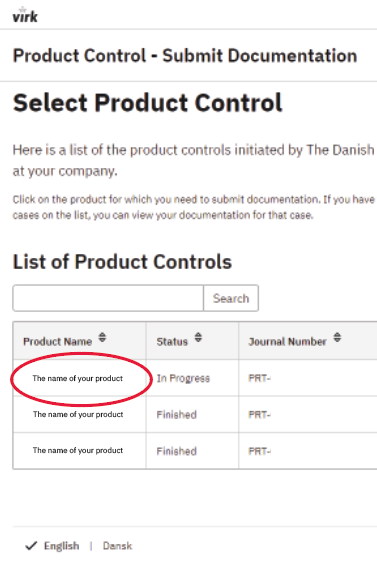
1: Click on the name of the product you wish to upload documentation to.
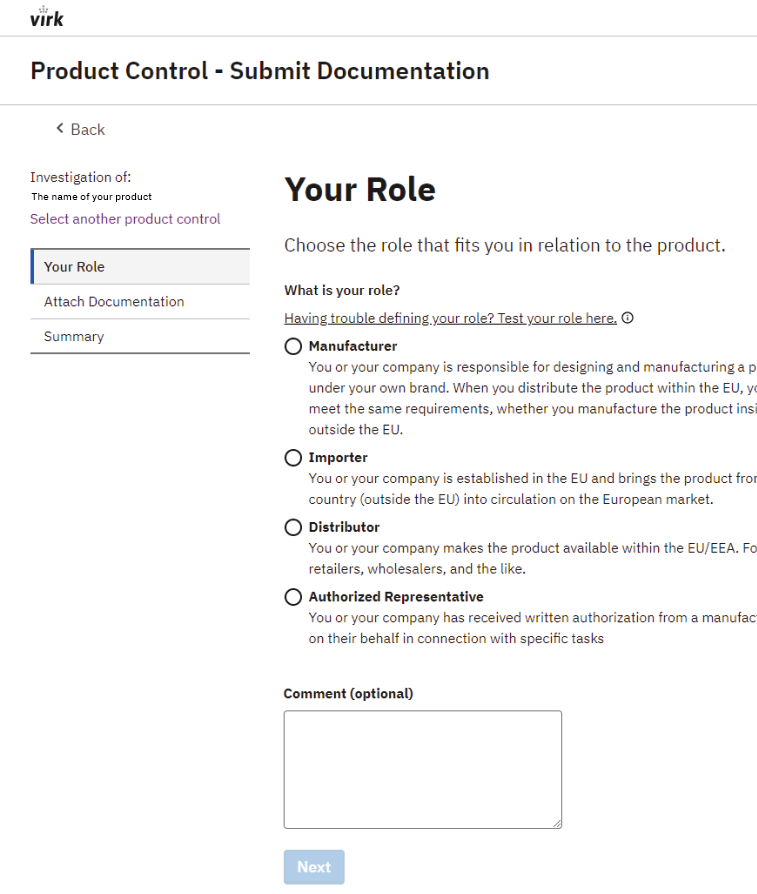
Select a role
1: Select the role that is relevant to your situation. If you do not know your role you can test it by clicking on the link below the label.
If none of the roles are relevant to you please select a random role and comment in the field on the page.
2: Click "Next"
Attach documentation and other relevant information
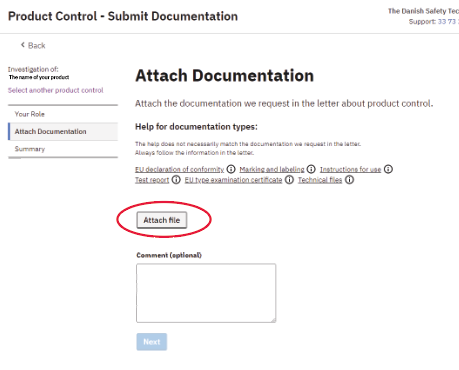
1: Click on "Attach file and select the file you wish to send and is requested in the e-mail we sent you.
2: Select a documentation type. If the type isn't listed please select "other"
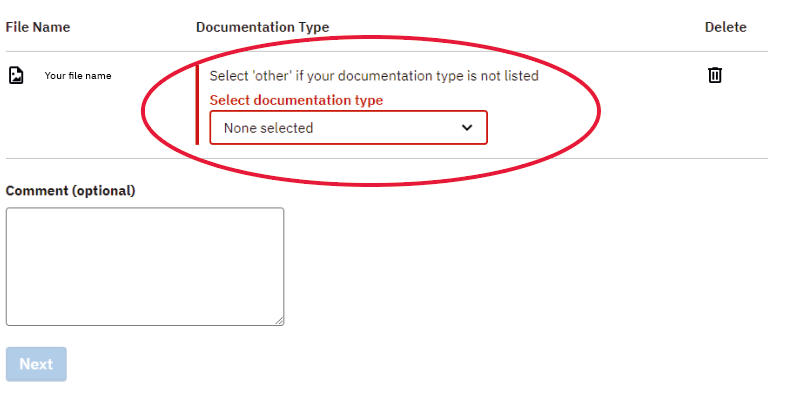
2: Repeat the process for all documents
3: If you wish to delete files you can click in the trash bin next to the document. Note you cannot delete or replace documentation sent to The Danish Safety Technology Authority
4: Click "Next" when you have attached all the documents
Send documentation
1: Review the summery and edit your information if needed
2: Click on "Send documentation" when you are ready
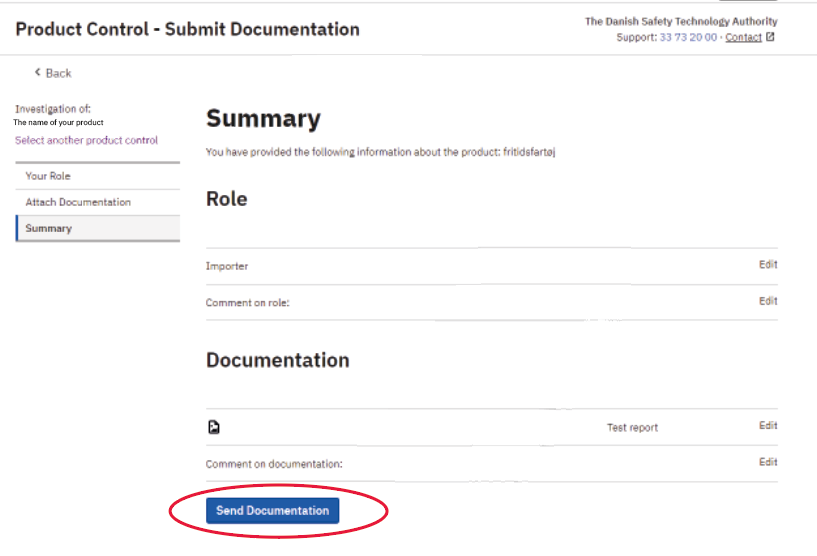
3: You will get a receipt on the screen and in your inbox